
Quick answer
How do I set up IPTV on a Hisense or TCL TV?
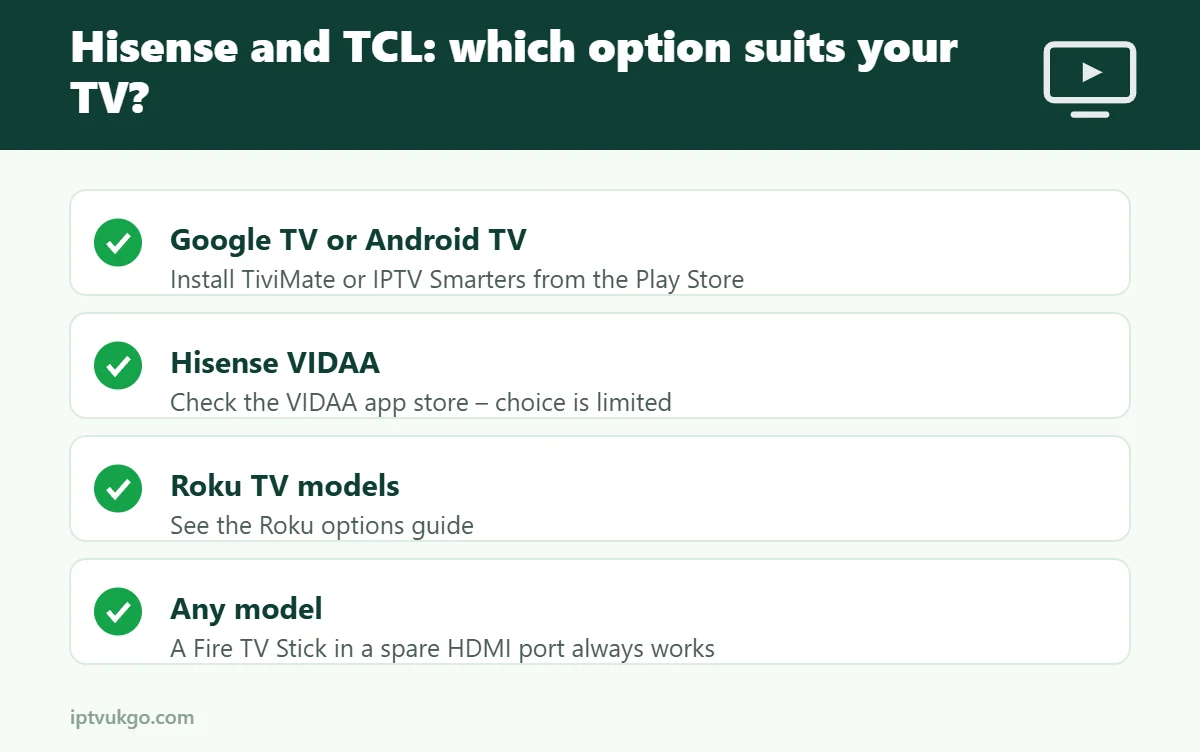
First check which system your TV runs. TCL TVs and some Hisense models use Google TV or Android TV – install TiviMate or IPTV Smarters Pro from the Google Play Store and sign in. Most other Hisense TVs use VIDAA, which has far fewer IPTV apps; if you cannot find a suitable player, plugging in a Fire TV Stick is the easiest fix.
Hisense and TCL are two of the most popular TV brands in the UK, thanks to great value 4K models. Setting up IPTV is easy on most of them, but the steps depend on the TV’s operating system. This guide helps you check which one you have and choose the best way to watch.
Step 1: Find out which system your TV runs
| What you see | System | IPTV options |
|---|---|---|
| A “Google TV” or “Android TV” logo, and the Google Play Store | Google TV / Android TV | Excellent – TiviMate, IPTV Smarters and more |
| A VIDAA home screen with the VIDAA app store | VIDAA (many Hisense models) | Limited – check the app store, or add a streaming stick |
| Roku home screen (some TCL and Hisense models) | Roku TV | Limited – see our Roku guide |
| Fire TV home screen (some models) | Fire TV built-in | Very good – see Fire TV setup |
You can also check under the TV’s Settings > About or in the model’s specifications.
TCL and Hisense with Google TV or Android TV
- Open the Google Play Store from the home screen.
- Search for TiviMate or IPTV Smarters Pro and install it.
- Open the app and sign in with your Xtream Codes details or M3U link. See M3U vs Xtream Codes.
- Wait for channels and the TV guide to load, then add favourites.
Full sign-in steps: TiviMate setup guide and IPTV Smarters Pro setup guide. The steps are the same as our Android TV guide.
Hisense with VIDAA
VIDAA is Hisense’s own system. Its app store has a smaller choice of apps, and full-featured IPTV players are not always available, depending on your model and region.
- Open the VIDAA app store (often called App Store or VIDAA Store) and search for “IPTV”.
- If you find a player that supports Xtream Codes or M3U, install it and sign in with your details.
- If there is no suitable player, or it is slow, plug a Fire TV Stick or Google TV device into a spare HDMI port. This gives you the full range of apps and a faster experience. See the Firestick setup guide.
Tips for the best picture
- Use Ethernet – Hisense and TCL TVs have a network port, which gives a steadier picture than Wi-Fi.
- Turn off heavy motion processing (often called Motion Clearness, MEMC or Smooth Motion) if live sport looks unnatural.
- Keep the TV updated under Settings > Support > System update or Settings > System > About.
- Clear the app cache if it slows down – on Google TV: Settings > Apps > [your app] > Clear cache.
Frequently asked questions
Can I install TiviMate on a Hisense TV?
On Hisense models with Google TV or Android TV, yes. On VIDAA models, no – use a Fire TV Stick or Google TV device instead.
Is TCL good for IPTV?
Yes. Most TCL TVs run Google TV, so you get access to all the popular IPTV player apps.
My TV keeps freezing. What should I do?
Use a wired connection, clear the app cache and restart the TV. More fixes in IPTV freezing on Smart TVs.