
Quick answer
How do I set up IPTV on an Nvidia Shield?
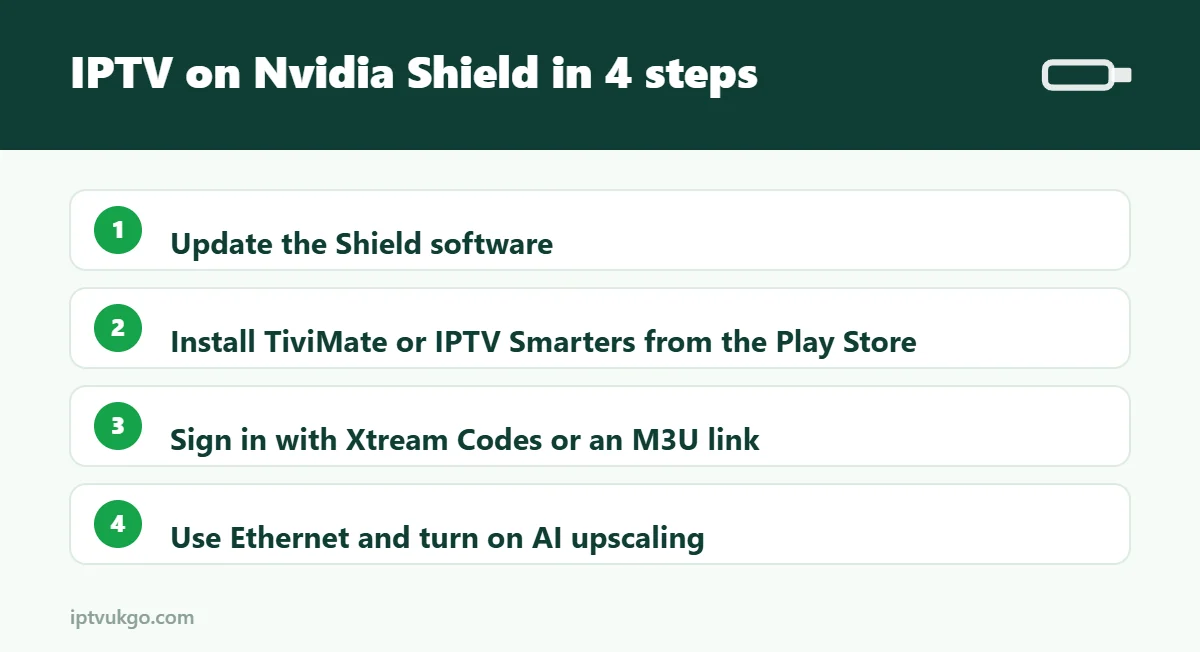
Open the Google Play Store on your Nvidia Shield TV or Shield TV Pro, install a player app such as TiviMate or IPTV Smarters Pro, then sign in with your Xtream Codes details or M3U link. Connect the Shield with an Ethernet cable for the steadiest picture, and turn on AI upscaling if you watch HD channels on a 4K TV.
The Nvidia Shield TV is often called the best streaming box you can buy for IPTV. It is fast, has plenty of memory, a built-in Ethernet port and excellent picture processing. Setup takes about ten minutes, and this guide covers the settings that get the most out of it.
Which Shield do you have?
| Model | Good to know |
|---|---|
| Shield TV (tube design) | Compact, Ethernet port, microSD slot – great for most people |
| Shield TV Pro | More memory and storage, USB ports – best for large channel lists and recordings |
| Older Shield TV (2015/2017) | Still works well for IPTV with the latest updates installed |
Step 1: Update the Shield
Go to Settings > Device Preferences > About > System upgrade and install any updates. This makes sure the Play Store and video features work properly.
Step 2: Install a player app
- Open the Google Play Store from the home screen.
- Search for TiviMate (recommended) or IPTV Smarters Pro.
- Select Install, then Open.
If your provider recommends an app that is not in the Play Store, install Downloader, then allow it under Settings > Device Preferences > Security & restrictions > Unknown sources.
Step 3: Sign in
Choose Xtream Codes and enter your server URL, username and password, or paste your M3U link. Detailed steps are in our TiviMate setup guide and IPTV Smarters Pro setup guide. Not sure which login you have? See M3U vs Xtream Codes.
Step 4: Best settings for IPTV
- Use Ethernet. Plug a network cable into the back of the Shield – it is the most reliable way to watch live sport.
- AI upscaling. Under Settings > Device Preferences > Display & Sound > AI upscaling, choose AI-Enhanced to make HD channels look sharper on a 4K TV.
- Match frame rate. Turn on Match content frame rate in the display settings so sport and fast motion look smooth.
- Audio. If the sound drifts out of sync, try a different audio output setting – see audio out of sync on IPTV.
Recording on the Shield
The Shield TV Pro has USB ports, so you can attach a USB drive and use TiviMate Premium’s recording feature. Remember that recording live TV needs a TV Licence – see do you need a TV Licence for IPTV?
Frequently asked questions
Is the Nvidia Shield good for IPTV?
Yes. It is one of the fastest Android TV devices available and handles large channel lists and 4K streams with ease.
Does TiviMate work on Nvidia Shield?
Yes. TiviMate is in the Google Play Store on Shield and runs very smoothly.
Shield or Fire TV Stick?
The Shield is faster, has Ethernet built in and better picture processing; a Fire TV Stick is much cheaper. Compare the options in best device types for IPTV.