
Quick answer
How do I watch IPTV on Apple TV?
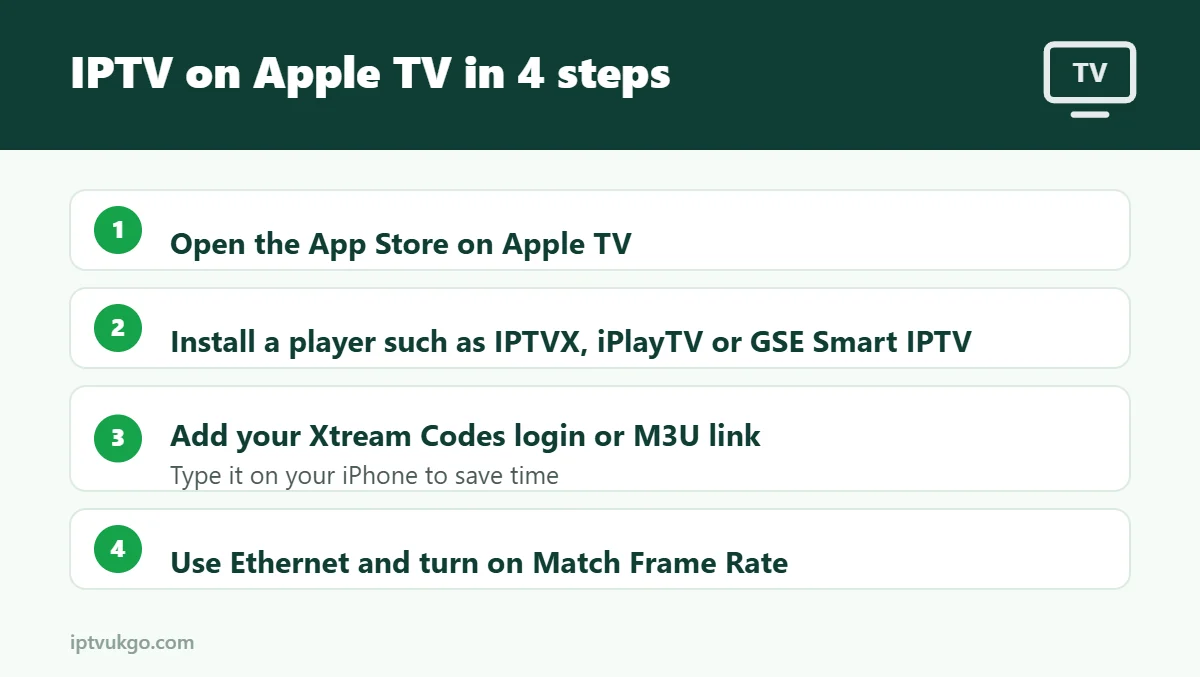
Open the App Store on your Apple TV, install an IPTV player app such as IPTVX, iPlayTV or GSE Smart IPTV, then add your Xtream Codes login or M3U link. Many Apple TV apps let you type the details on your iPhone instead of the remote. Once the channels and TV guide load, you are ready to watch.
Apple TV is one of the smoothest ways to watch IPTV: the hardware is fast, the Siri remote is easy to use, and 4K models handle high-quality streams comfortably. Unlike Fire TV, you cannot sideload apps, so everything comes from the App Store. This guide shows you which apps to use and how to set them up.
Which Apple TV models work?
- Apple TV 4K (all generations) – recommended. Fast, supports 4K and has Ethernet on most models.
- Apple TV HD – works well for HD channels.
- Older Apple TVs (3rd generation and earlier) – these do not have the App Store, so they cannot run IPTV apps.
Step 1: Choose a player app
Apple TV player apps are paid or offer in-app purchases more often than Android apps, but they tend to be polished. Popular choices include:
| App | Good for | Notes |
|---|---|---|
| IPTVX | Clean, modern design | Supports Xtream Codes and M3U, syncs with iPhone and iPad |
| iPlayTV | A traditional TV guide feel | Strong EPG view, paid app |
| GSE Smart IPTV | Flexibility and many settings | Free with optional upgrades |
App availability and prices change, so check the current App Store listing before you buy. Whichever app you pick, it will not include any channels – it plays the service you sign in with.
Step 2: Install the app
- On the Apple TV home screen, open the App Store.
- Use Search and type the name of the app.
- Select Get (or the price) and confirm with your Apple ID.
Step 3: Add your login
- Open the app and look for Add playlist, Add provider or Add account.
- Choose Xtream Codes if your provider gave you a server URL, username and password, or M3U if you have a single link. Not sure? Read M3U vs Xtream Codes.
- Enter the details. Tip: when a text box appears on the TV, your iPhone usually shows a notification so you can type or paste with the phone keyboard.
- Save and wait for the channels and TV guide to load.
Step 4: Get the best picture
- Use Ethernet if you can. Most Apple TV 4K models have an Ethernet port, which gives the steadiest picture for live sport.
- Match frame rate and range. In Settings > Video and Audio > Match Content, turning on Match Frame Rate makes sport and fast motion look smoother.
- Keep tvOS updated under Settings > System > Software Updates.
Common problems and fixes
The app will not accept my login
Check for spaces and capital letters, and make sure the server URL includes http:// and the port number.
Channels buffer at night
Peak-time slowdowns are usually broadband related. See IPTV buffering at night for fixes.
The TV guide is empty
Refresh the guide in the app’s settings or add the EPG link from your provider. More help: EPG not loading.
Frequently asked questions
Can I sideload apps on Apple TV?
No. Apple TV only installs apps from the App Store.
Is TiviMate available on Apple TV?
No. TiviMate is only for Android TV and Fire TV devices.
Can I use the same app on my iPhone and iPad?
Many Apple TV apps also work on iPhone and iPad, and some sync your playlists between devices. See our guides for iPhone and iPad.