
Quick answer
How do I set up IPTV on Chromecast with Google TV?
Open the Google Play Store on your Chromecast with Google TV or Google TV Streamer, install a player app such as TiviMate or IPTV Smarters Pro, then sign in with your Xtream Codes details or M3U link. If an app is not in the Play Store, install Downloader, allow it to install unknown apps, and use it to install the player your provider recommends.
Chromecast with Google TV and its successor, the Google TV Streamer, are among the best devices for IPTV. They run Android TV underneath, so they support the same player apps as Android boxes, have a proper remote and a fast, simple home screen. This guide covers setup step by step, and explains how older “cast-only” Chromecasts are different.
Which Chromecast do you have?
| Device | Has its own remote and home screen? | IPTV apps |
|---|---|---|
| Google TV Streamer | Yes | Install apps directly – recommended |
| Chromecast with Google TV (4K or HD) | Yes | Install apps directly |
| Older Chromecast (no remote) | No – cast-only | Cast from a phone app that supports Chromecast |
Google has replaced the Chromecast with Google TV with the Google TV Streamer, but existing Chromecast with Google TV devices continue to work well.
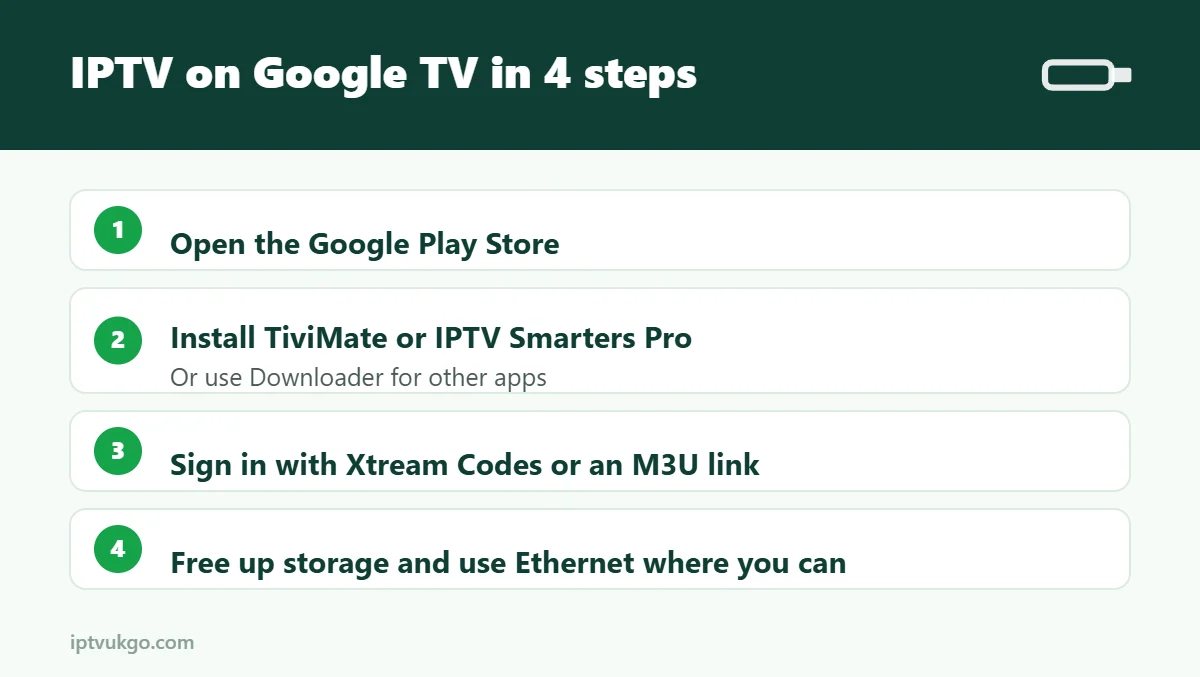
Step 1: Install a player app from the Play Store
- From the home screen, go to Search or Apps and open the Google Play Store.
- Search for your player app, for example TiviMate.
- Select Install, then Open.
See our TiviMate setup guide or IPTV Smarters Pro setup guide for detailed sign-in steps.
Step 2 (if needed): Install an app with Downloader
If your provider recommends an app that is not in the Play Store:
- Install Downloader from the Play Store.
- Turn on developer options: go to Settings > System > About, scroll to Android TV OS build and click it seven times.
- Go to Settings > Apps > Security & restrictions > Unknown sources and turn it on for Downloader.
- Open Downloader, enter the code or link from your provider and install the app.
Step 3: Sign in and load your channels
- Open the player app and choose Xtream Codes (or M3U if that is what you have). Not sure? Read M3U vs Xtream Codes.
- Enter your server URL, username and password, or paste your M3U link.
- Wait for the channels and TV guide to load, then add your favourite channels.
Step 4: Improve performance
- Free up storage – Chromecast with Google TV has limited space. Uninstall apps you do not use under Settings > Apps.
- Use Ethernet for live sport – Google TV Streamer has an Ethernet port; for Chromecast with Google TV, a USB-C hub or Google’s Ethernet power adapter works well.
- Turn off the ambient mode slideshow if the device feels slow, under Settings > System > Ambient mode.
Using an older cast-only Chromecast
Older Chromecasts have no home screen of their own. You open an app on your phone and tap the cast icon to send the picture to the TV. Many IPTV player apps on Android and iPhone support casting, but features such as the full TV guide stay on your phone. For a better everyday experience, a Google TV device or a Fire TV Stick is worth the upgrade.
Frequently asked questions
Does TiviMate work on Chromecast with Google TV?
Yes. It is available in the Google Play Store and works very well on Google TV devices.
Is the Google TV Streamer better than a Fire TV Stick for IPTV?
Both are excellent. The Google TV Streamer has more storage and an Ethernet port; Fire TV Sticks are cheaper and very popular in the UK.
Why is my Chromecast running slowly?
Usually low storage. Remove apps you do not use, clear the player app’s cache and restart the device.