
Quick answer
How do I set up TiviMate?
Install TiviMate on an Android TV, Google TV or Fire TV device, open it and choose Add playlist. Select Xtream Codes and enter the server address, username and password from your provider (or paste an M3U link), give the playlist a name and select Done. TiviMate loads your channels and TV guide automatically.
TiviMate is a favourite with UK viewers because it looks and feels like a traditional TV box: a fast, colourful programme guide, simple favourites and very smooth channel switching. This guide covers installation, adding your playlist, setting up the TV guide and the settings that make the biggest difference day to day.
Which devices can run TiviMate?
TiviMate is built for Android TV, so it works on:
- Amazon Fire TV Sticks and Fire TV Cube
- Android TV and Google TV boxes, including Chromecast with Google TV and Nvidia Shield
- TVs running Android TV or Google TV (many Sony, Philips, Hisense and TCL models)
It is not available for Samsung or LG Smart TVs, iPhone, iPad or Apple TV. On those devices, see our guides for Smart TVs and Apple TV.
Step 1: Install TiviMate
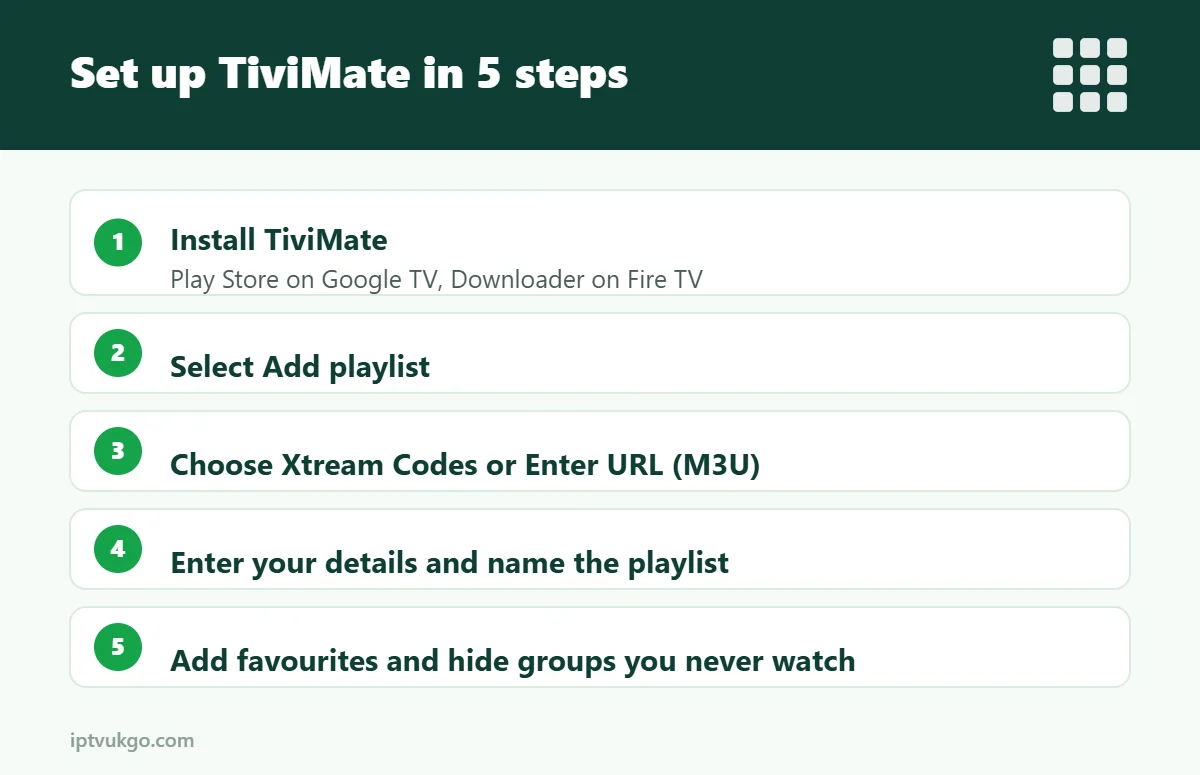
- Google TV and Android TV: search for TiviMate in the Google Play Store and install it.
- Fire TV Stick: install it using the Downloader app, following the steps in our Firestick setup guide.
Step 2: Add your playlist
- Open TiviMate and select Add playlist.
- Choose your login type.
- If you chose Xtream Codes, enter the server address (including http:// and any port number), then your username and password.
- If you chose Enter URL (for an M3U link), paste the full link exactly as sent.
- Select Next. TiviMate checks the details and shows how many channels it found.
- Give the playlist a name, such as “IPTV UK GO”, and select Done.
Xtream Codes is usually the better choice because the TV guide, films and series load automatically. Read M3U vs Xtream Codes if you are unsure.
Step 3: Set up the TV guide (EPG)
With an Xtream Codes login, the guide normally loads on its own. With an M3U link you may need to add it:
- Go to Settings > EPG.
- Select Add EPG source and paste the EPG link from your provider.
- Set the guide to update once a day.
If the guide is blank or the times look wrong, our guide on EPG not loading has the fixes.
Step 4: Make TiviMate your own
- Favourites – highlight a channel, press and hold the select button and choose Add to favourites. You can create more than one favourites list.
- Hide groups you never watch – under Settings > Playlists, choose your playlist and hide or reorder channel groups. A shorter list is faster to browse.
- Channel numbers – assign numbers to favourites so you can switch quickly with the remote.
- Start on the TV guide – in Settings you can choose to open TiviMate straight to the guide or to the last channel you watched.
TiviMate free vs Premium
The free version lets you add a playlist, browse the guide and watch live channels. TiviMate Premium is an optional paid upgrade that adds features such as:
- Catch-up (on channels that support it) – see how catch-up works
- Recording and scheduled recordings
- Multiple playlists
- Multi-view (watching several channels at once)
- More customisation of favourites and the guide
Premium is managed through the separate TiviMate Companion app on a phone.
Common problems and fixes
“Playlist is empty” or “Unable to load playlist”
Check the server address includes http:// and the correct port, and that the username and password have no extra spaces.
Channels buffer or freeze
Try a wired connection or 5 GHz Wi-Fi first. In playback settings, switching the video decoder (hardware or software) can help on some devices. More fixes: IPTV buffering at night.
The app feels slow
Hide unused groups, keep at least 1 GB of storage free and restart the device. On older Fire TV Sticks, a lighter app may suit you better – see best IPTV player apps for Firestick.
Frequently asked questions
Is TiviMate free?
Yes, the basic app is free. Premium is an optional paid upgrade.
Does TiviMate come with channels?
No. TiviMate is a player app. You sign in with a subscription from a provider to get channels.
Can I use TiviMate on Samsung or LG TVs?
No. It only runs on Android TV, Google TV and Fire TV devices. A Fire TV Stick is an easy way to add it to any TV.