
Quick answer
How do I set up parental controls on IPTV?
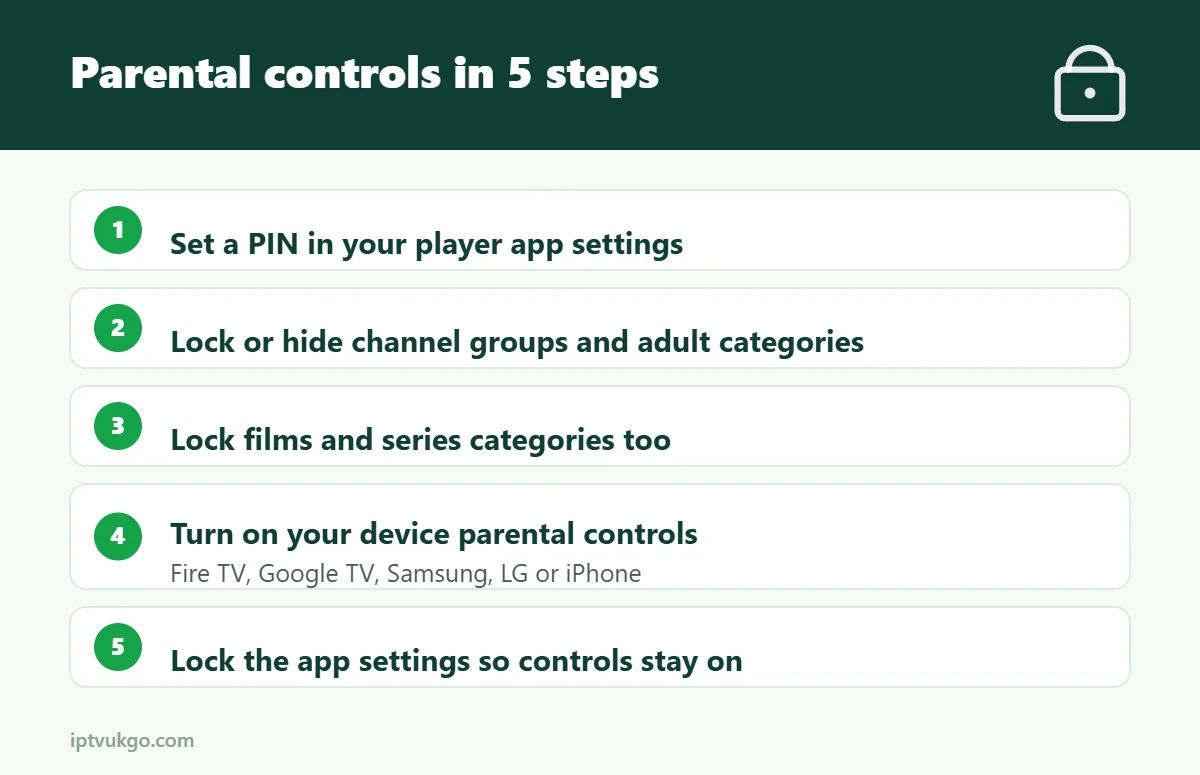
Most IPTV player apps let you set a PIN and lock channel groups, films or series. In IPTV Smarters Pro, use the Parental Control option in Settings; in TiviMate, set a PIN and lock or hide groups. Add a second layer with your device’s own controls – for example Fire TV parental controls – and keep adult or unsuitable categories hidden completely.
IPTV services can include thousands of channels, films and series, and not all of them are suitable for children. The good news is that most player apps and streaming devices have parental controls built in. This guide shows you how to use them, step by step, so the family can watch with peace of mind.
Two layers of protection
For the best protection, use both:
- App controls – lock specific channel groups, films and series inside your IPTV player app.
- Device controls – stop children installing apps, buying content or opening apps you have not approved.
IPTV Smarters Pro
- Open the app and go to Settings.
- Select Parental Control.
- Create a PIN – choose one children will not guess, and not the same as your bank PIN.
- Choose which Live TV categories, Movies categories and Series categories to lock.
- Save. Locked categories now need the PIN to open.
You can also create separate user profiles in Smarters, so children have their own profile. See our IPTV Smarters Pro setup guide.
TiviMate
- Go to Settings > Parental control and set a PIN.
- Choose whether the PIN is needed to open locked channels, change settings or both.
- Go to your playlist’s channel groups and lock or hide groups you do not want children to see.
Hiding groups you never use also makes the channel list shorter and faster. See our TiviMate setup guide.
Other player apps
Look for Parental control, Lock, PIN or Adult content in the settings. Many apps can hide categories marked as adult by default – make sure this is switched on.
Device-level controls
Amazon Fire TV
Go to Settings > Preferences > Parental Controls, turn them on and set a PIN. You can require the PIN for purchases, opening apps and certain content ratings.
Android TV and Google TV
On Google TV, you can create a kids profile with approved apps only. On Android TV, use Settings > Device Preferences > Restricted profile (on supported models) to limit which apps can be opened.
Samsung and LG Smart TVs
Both have parental settings in the TV’s menu, including app locks and programme rating locks. Look under Settings > General > Parental settings (Samsung) or Settings > General > Safety (LG); the exact location varies by model.
iPhone and iPad
Use Settings > Screen Time > Content & Privacy Restrictions to limit apps and content.
Extra tips for families
- Keep the PIN private and change it if you think children know it.
- Lock the settings menu in your player app, so the controls cannot simply be switched off.
- Use a separate profile or device for younger children, such as a tablet with only kids’ apps.
- Check regularly – new categories can appear when channel lists are updated.
- Talk to children about what they watch; no filter is perfect.
Frequently asked questions
Can I hide adult channels completely?
Yes, in most apps. Hide or lock the category, and turn on any “hide adult content” option.
I forgot my parental control PIN. What now?
In most apps you can reset it by clearing the app’s data and signing in again, which also resets your settings. Keep a note of your PIN somewhere safe.
Do parental controls work on every device?
App controls only work inside that app. Use device controls too, so children cannot install a different app to get around them.