
Quick answer
Can you watch IPTV on Roku?
Not directly in the way you can on Fire TV or Android TV. Roku does not allow sideloading, and full-featured IPTV player apps such as TiviMate and IPTV Smarters are not in the Roku Channel Store. The practical options are to screen-mirror from a phone or computer, use AirPlay on supported Roku models, or plug an inexpensive Fire TV Stick or Google TV device into a spare HDMI port.
Roku sticks and Roku-powered TVs are popular in UK homes because they are simple and affordable. That simplicity comes with a limit: Roku controls which apps can be installed, and the IPTV players most people use are not available. This guide explains your options honestly, so you can choose the one that works best.
Why IPTV apps are limited on Roku
Roku devices can only install apps (Roku calls them channels) from the official Roku Channel Store. There is a developer mode, but it is designed for app developers and is not a practical way for everyday viewers to install an IPTV player. Some basic M3U players appear in the store from time to time, but they usually lack a proper TV guide, catch-up or Xtream Codes login.
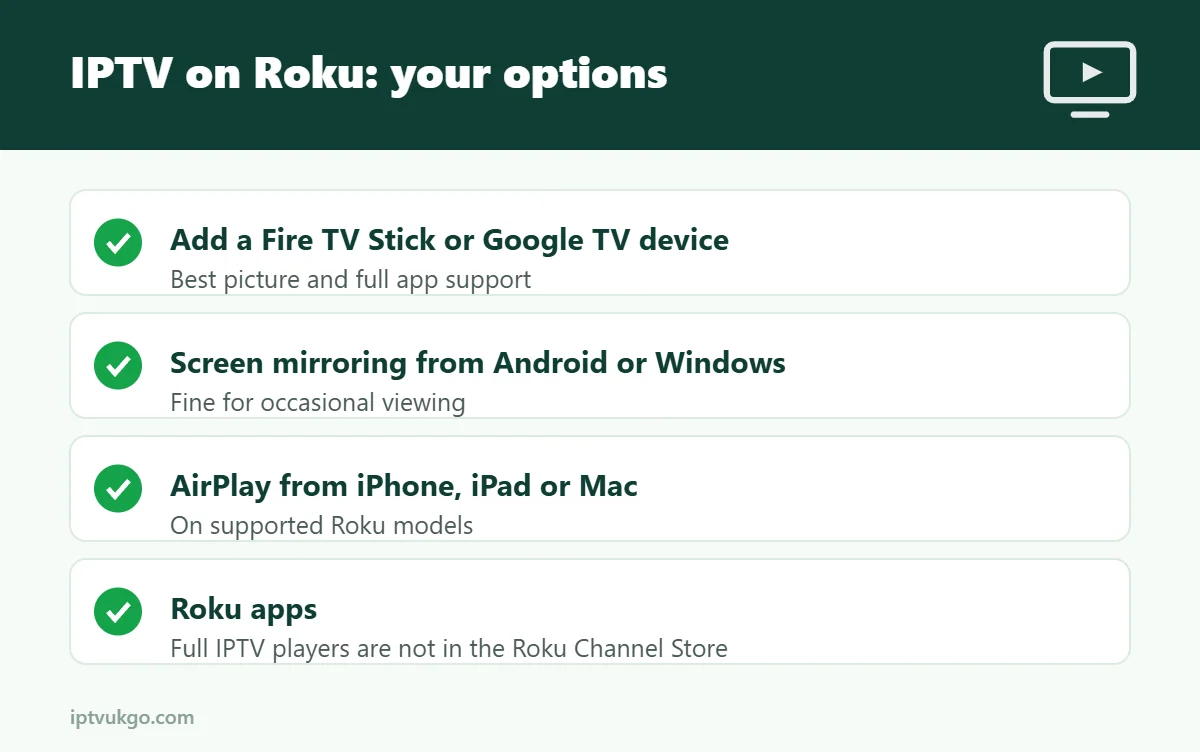
Option 1: Add a streaming stick (recommended)
The simplest, most reliable solution is to plug a different streaming device into your TV’s spare HDMI port:
- Amazon Fire TV Stick – works with every popular IPTV player app. See the Firestick setup guide.
- Google TV Streamer or other Google TV device – Play Store apps including TiviMate. See Chromecast with Google TV and Google TV setup.
You can keep using Roku for its other apps and switch HDMI input when you want IPTV. This gives you the full experience: fast channel switching, a proper TV guide, favourites and catch-up.
Option 2: Screen mirroring from Android or Windows
Most Roku devices support screen mirroring from Android phones and Windows computers.
- On the Roku, go to Settings > System > Screen mirroring and make sure it is set to Prompt or Always allow.
- Make sure your phone or computer is on the same Wi-Fi network as the Roku.
- On Android, open Quick Settings and choose Smart View, Screen Cast or Cast (the name varies by brand). On Windows, press Windows key + K.
- Select your Roku, then open your IPTV app on the phone or computer and start a channel.
Mirroring is fine for the odd programme, but quality depends on your Wi-Fi, your phone has to stay awake, and it is not ideal for live sport.
Option 3: AirPlay from iPhone, iPad or Mac
Many recent Roku 4K devices and Roku TVs support Apple AirPlay. Check under Settings > Apple AirPlay and HomeKit on your Roku. If it is available, open your IPTV app on an iPhone, iPad or Mac and use the AirPlay button to send the picture to the TV. Some apps only allow audio or mirroring rather than direct video, so results vary.
Which option should you choose?
| Option | Picture quality | Ease of use | Best for |
|---|---|---|---|
| Add a Fire TV Stick or Google TV device | Excellent | Very easy | Everyday viewing |
| Screen mirroring (Android/Windows) | Good to fair | Fiddly | Occasional use |
| AirPlay (supported Roku models) | Good | Easy | iPhone and iPad users |
Frequently asked questions
Can I install TiviMate or IPTV Smarters on Roku?
No. Neither app is available in the Roku Channel Store, and Roku does not support sideloading for everyday users.
Is there any IPTV app on Roku with a TV guide?
Occasionally basic players appear, but they rarely offer a full guide or catch-up. A Fire TV Stick or Google TV device is a better long-term solution.
Will a Fire TV Stick work on my Roku TV?
Yes. Plug it into any free HDMI port, then switch the TV’s input to that port.