
Quick answer
How do I fix audio out of sync on IPTV?
First change channel and come back, or restart the app. If the delay stays, switch the player or video decoder in the app’s settings, turn off any sound bar or TV audio delay settings, set the device’s audio output to PCM or Stereo, and check whether the problem happens on every channel or just one.
Few things are as distracting as voices that do not match lips, especially during live sport or the news. Audio sync problems on IPTV usually come from one of three places: the stream itself, the player app, or the audio settings on your TV, sound bar or streaming device. Here is how to work out which, and fix it.
Step 1: Is it one channel or all of them?
- Only one channel? The problem is likely with that stream. Try again later, or tell support which channel and when.
- Every channel? The cause is in your app, device or audio setup – work through the steps below.
- Only on-demand films? Try a different player in the app’s settings.
Step 2: Quick fixes
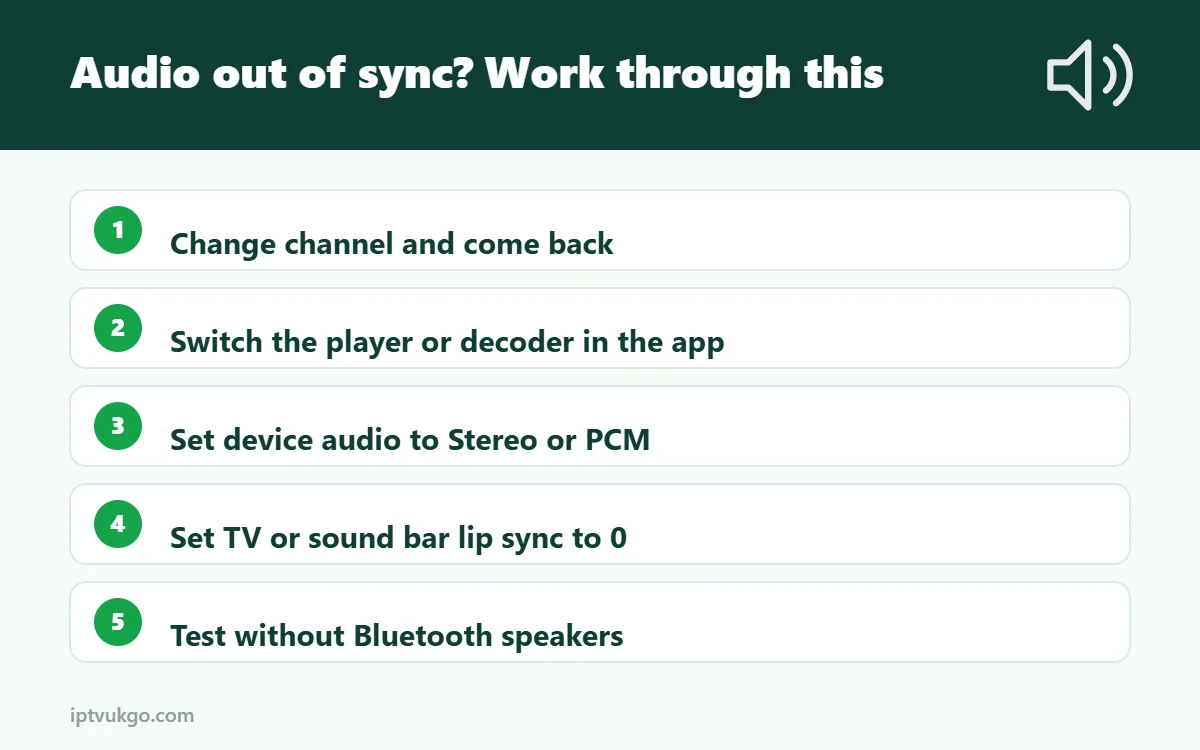
- Change channel and come back. This reloads the stream and often resets the timing.
- Pause for a few seconds, then play. Some players re-sync after a pause.
- Restart the player app, then restart the device if needed.
Step 3: Change the player or decoder
Most IPTV apps let you choose how video is played:
- IPTV Smarters Pro: in Settings, try a different built-in player.
- TiviMate: in playback settings, switch between hardware and software decoding.
- Other apps: look for Player, Decoder or Stream format options and try each one.
If the sync problem disappears with a different player, keep that setting.
Step 4: Check your audio settings
Many sync issues are caused by the TV or sound system adding a delay.
- Sound bars and AV receivers often have an “AV sync” or “lip sync” setting. Set it to 0, or adjust it until voices match.
- TV audio delay – check the TV’s sound menu for an audio delay or lip sync option.
- Fire TV Stick: go to Settings > Display & Sounds > Audio and try setting Surround Sound to Stereo or PCM instead of Best Available. Some Fire TV models also offer AV Sync Tuning.
- Android TV and Google TV: under Settings > Display & Sound, try a stereo or PCM audio format instead of automatic.
- Bluetooth headphones and speakers add a delay of their own. Test with the TV speakers to see if the problem disappears.
Step 5: Look at your connection
On a weak Wi-Fi connection, a stream can catch up in jumps, which sometimes throws the audio out of step. A wired connection or 5 GHz Wi-Fi helps. See Ethernet vs Wi-Fi for IPTV.
Step 6: Update everything
Update the player app, the device software and, if possible, the TV and sound bar firmware. Audio sync bugs are often fixed in updates.
Quick checklist
| Check | Where |
|---|---|
| Change channel / restart app | In the app |
| Switch player or decoder | App settings |
| Audio format to Stereo or PCM | Device settings |
| Lip sync / AV sync to 0 | TV or sound bar menu |
| Test without Bluetooth | Use TV speakers |
Frequently asked questions
Why is the sound ahead of the picture?
Usually the TV or sound bar is processing the picture more slowly than the sound. Adjust the lip sync setting or turn off extra picture processing modes on the TV.
Why does the audio drift out of sync over time?
This often points to the player or decoder. Switching to a different player in the app’s settings usually fixes it.
Is audio delay worse with Bluetooth?
Yes. Bluetooth audio adds a delay. Some TVs and devices can compensate, but wired speakers or the TV speakers are more reliable.