
Quick answer
IPTV not working on Firestick – what should I try first?
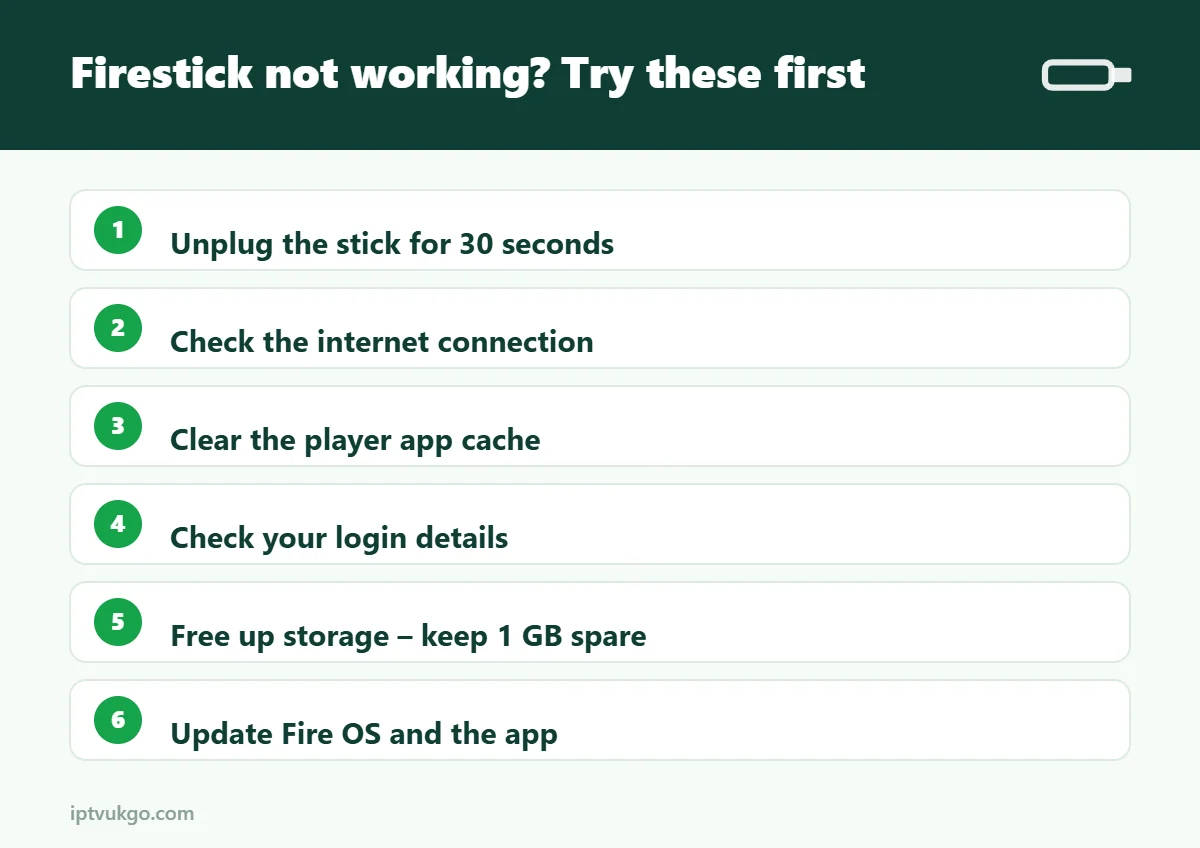
Restart the Fire TV Stick by unplugging it for 30 seconds, check your internet connection, then clear the player app’s cache. If that does not work, check your login details, free up storage, update the app and Fire OS, and try a different player. Most problems are fixed by the first three steps.
Your Firestick was working fine yesterday, and now channels will not load, the app crashes or you are stuck on a black screen. Before you contact anyone, work through these nine fixes in order. They start with the quickest and solve the vast majority of Fire TV Stick problems.
1. Restart the Fire TV Stick properly
Choosing Restart from the menu is good, but a full power cycle is better. Unplug the power cable from the wall (not just the TV’s USB port), wait 30 seconds and plug it back in. This clears temporary glitches and memory problems.
You can also restart from Settings > My Fire TV > Restart, or hold Select and Play/Pause together for about five seconds.
2. Check your internet connection
Go to Settings > Network, highlight your Wi-Fi network and press the Play/Pause button to check the connection status. If it says connected with problems, restart your router too. Other apps on the stick, such as YouTube or iPlayer, are a quick test: if they do not work either, the problem is the connection, not your IPTV service.
3. Clear the player app’s cache
Go to Settings > Applications > Manage installed applications, select your player app and choose Clear cache. This often fixes freezing, slow loading and an empty TV guide. Only choose Clear data if you are prepared to sign in again.
4. Check your login details
“Invalid login”, “authorisation failed” or an empty channel list usually mean a typo. Check for capital letters, spaces at the start or end, and that the server URL includes http:// and the port number. If your plan has recently expired, renew it or contact support. See M3U vs Xtream Codes for help entering details.
5. Free up storage
Fire TV Sticks have limited storage, and apps misbehave when it runs low. Check Settings > My Fire TV > About > Storage. Aim to keep at least 1 GB free:
- Uninstall apps and games you no longer use
- Delete leftover installer files in Downloader
- Clear the cache of large apps
6. Update the app and Fire OS
- Fire OS: go to Settings > My Fire TV > About > Check for updates and install anything available.
- Player app: update it from the Appstore, or reinstall the latest version using Downloader.
Occasionally a Fire OS update changes settings such as Install unknown apps, so check that the permission is still turned on under Settings > My Fire TV > Developer options.
7. Try a different player or stream format
If one app keeps crashing or certain channels will not play, try changing the player or stream format in the app’s settings, or install a different player. Our guide to the best IPTV player apps for Firestick compares the options.
8. Fix buffering and freezing
If channels play but keep freezing, the problem is usually Wi-Fi strength. An Ethernet adapter or 5 GHz Wi-Fi makes a big difference. If it mainly happens in the evening, see IPTV buffering at night.
9. Reset the Fire TV Stick
As a last resort, go to Settings > My Fire TV > Reset to Factory Defaults. This deletes all apps and settings, so you will need to set everything up again using the Firestick setup guide.
Common error messages
| Message | Likely cause | Fix |
|---|---|---|
| Invalid username or password | Typo or expired plan | Re-enter details, check plan status |
| No channels found | Wrong URL or port | Check server address and port |
| Black screen or no picture | Stream format or decoder | Change player or stream format |
| App keeps closing | Low storage or old app version | Free up space, update the app |
| TV guide empty | Guide not downloaded | Refresh the EPG – see EPG not loading |
Still not working?
Contact support with your device model, the app you use, the exact error message and when it started. That information helps solve the problem much faster. You can reach us on WhatsApp or email.
Frequently asked questions
Why did my Firestick IPTV suddenly stop working?
The most common reasons are a temporary glitch, a Wi-Fi problem, low storage, an app update or an expired plan. Work through the fixes above in order.
How do I make my Firestick faster?
Free up storage, uninstall unused apps, restart it weekly and use a wired connection. More tips: Firestick performance tips.
Will resetting my Firestick delete my apps?
Yes. A factory reset removes everything, so use it as a last resort.