
Quick answer
Why does IPTV keep freezing on my Samsung or LG TV?
The most common causes are weak Wi-Fi, a full app cache or low memory on the TV, an out-of-date app or TV software, and “quick start” modes that stop the TV from ever fully restarting. Do a full power reset, clear or reinstall the player app, update the TV, and use a wired connection. If the TV is several years old, a Fire TV Stick often solves the problem completely.
Samsung and LG Smart TVs are convenient for IPTV because there is no extra box, but their built-in apps have less memory and fewer settings than a streaming stick. If your picture freezes, stutters or the app crashes, work through these fixes in order.
1. Do a proper restart
Turning the TV off with the remote usually only puts it into standby. A full restart clears the memory:
- Samsung: with the TV on, press and hold the power button on the remote until the TV turns off and back on and the Samsung logo appears.
- LG: turn the TV off, unplug it from the wall for at least 60 seconds, then plug it back in.
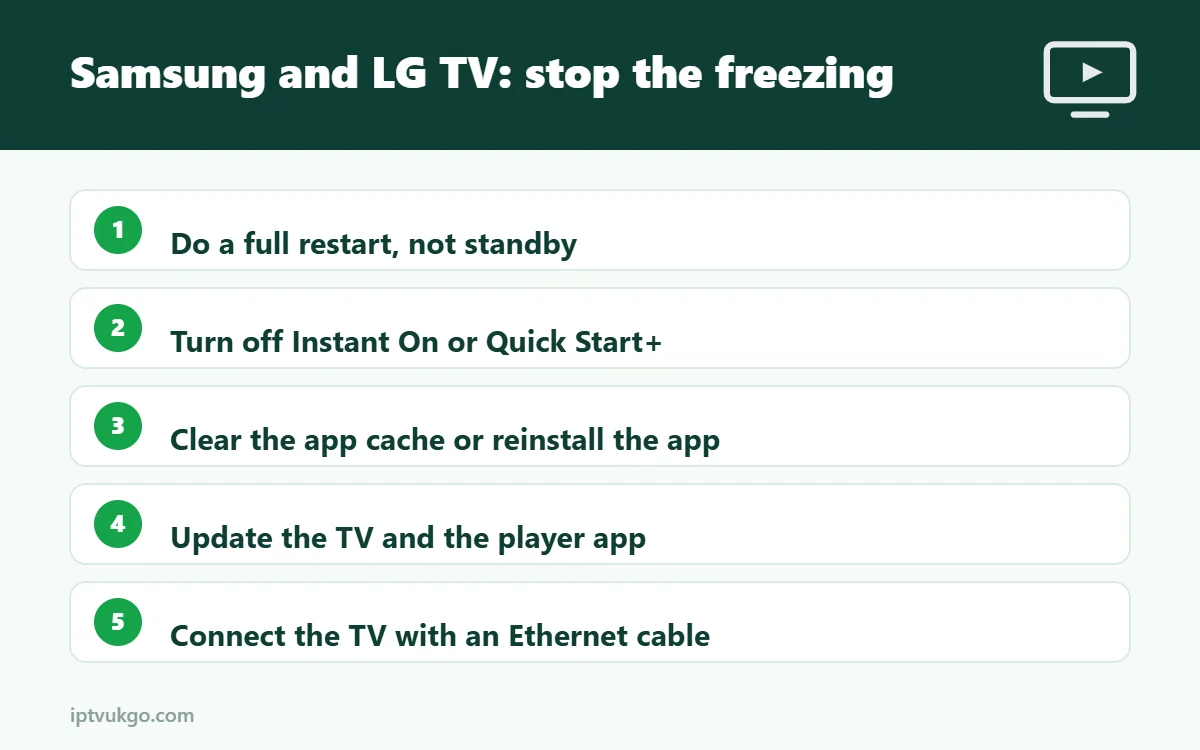
2. Turn off quick start modes
Features that make the TV switch on faster also stop it from fully restarting overnight, so memory issues build up.
- Samsung: look for Instant On under Settings > General and turn it off.
- LG: turn off Quick Start+ under Settings > General > Devices > TV Management (location varies by model).
3. Clear the cache or reinstall the app
- Samsung: on many recent models go to Settings > Support > Device Care > Manage Storage, select your player app, then View Details > Clear Cache.
- LG: webOS does not offer a cache option for most apps, so delete the app and install it again from the LG Content Store.
You will need to sign in again after reinstalling. Keep your login details handy.
4. Update the TV and the app
- Samsung: Settings > Support > Software Update > Update Now.
- LG: Settings > General > About This TV > Check for updates (or Settings > Support > Software Update on some models).
- Update the player app from the TV’s app store.
5. Improve the connection
Smart TVs often have weaker Wi-Fi than a modern phone or streaming stick.
- Use an Ethernet cable – almost every Samsung and LG TV has an Ethernet port. This is the most effective fix for freezing on live sport.
- If you must use Wi-Fi, connect to the 5 GHz network and keep the router close to the TV.
- Check the TV’s network status under its network settings and run its connection test.
- See Ethernet vs Wi-Fi for IPTV for more detail.
6. Try a different player app
Some player apps run better on certain TV models than others. If one keeps freezing, try another app from the TV’s store. Our Samsung TV guide and LG TV guide list the options.
7. Consider a streaming stick
TVs more than five or six years old often struggle with modern apps and large channel lists. A Fire TV Stick or Google TV device plugged into an HDMI port is usually faster, gets updates for longer and supports more player apps, including TiviMate. See best IPTV player apps for Firestick.
Freezing only in the evening?
If the picture is fine during the day and freezes at night, the cause is more likely your broadband at peak time. See IPTV buffering at night.
Frequently asked questions
Why does my Samsung TV IPTV app keep crashing?
Usually low memory or a full cache. Do a full restart, clear the app cache under Device Care and update the TV software.
How do I clear the cache on an LG TV?
Most LG apps do not have a cache option. Delete the app and reinstall it, then restart the TV.
Is a Fire TV Stick better than a Smart TV app?
Often, yes – especially on older TVs. Sticks have more up-to-date apps and are easy to replace when they age.