
Quick answer
Can you record live TV with IPTV?
Often, yes – but it depends on your player app and device. TiviMate Premium can record to the device, a USB drive or network storage, and some other apps include a record button. Where recording is not available, catch-up is a simple alternative for programmes you miss. Remember that recording live TV in the UK needs a TV Licence.
A traditional set-top box makes recording easy: press the red button and it saves the programme. With IPTV, recording is handled by your player app rather than the service, so the options vary. This guide explains how recording works, which apps support it, how much storage you need and when catch-up is the better choice.
Recording vs catch-up
| Recording | Catch-up | |
|---|---|---|
| Who saves it | You, on your device or drive | The channel, for a limited time |
| How long you can keep it | Until you delete it | Usually a few days |
| Storage needed | Yes | No |
| Works on every channel | Depends on the app | Only channels with catch-up |
If you mainly want to watch programmes you missed in the last few days, catch-up is often easier.
Apps that can record
- TiviMate (Premium) – the most popular option. You can record now, schedule recordings from the TV guide and choose where recordings are saved.
- Other Android TV apps – some players include a record button; check your app’s settings or menu.
- Apple TV and Smart TV apps – recording is less common because of limited storage.
How to record in TiviMate
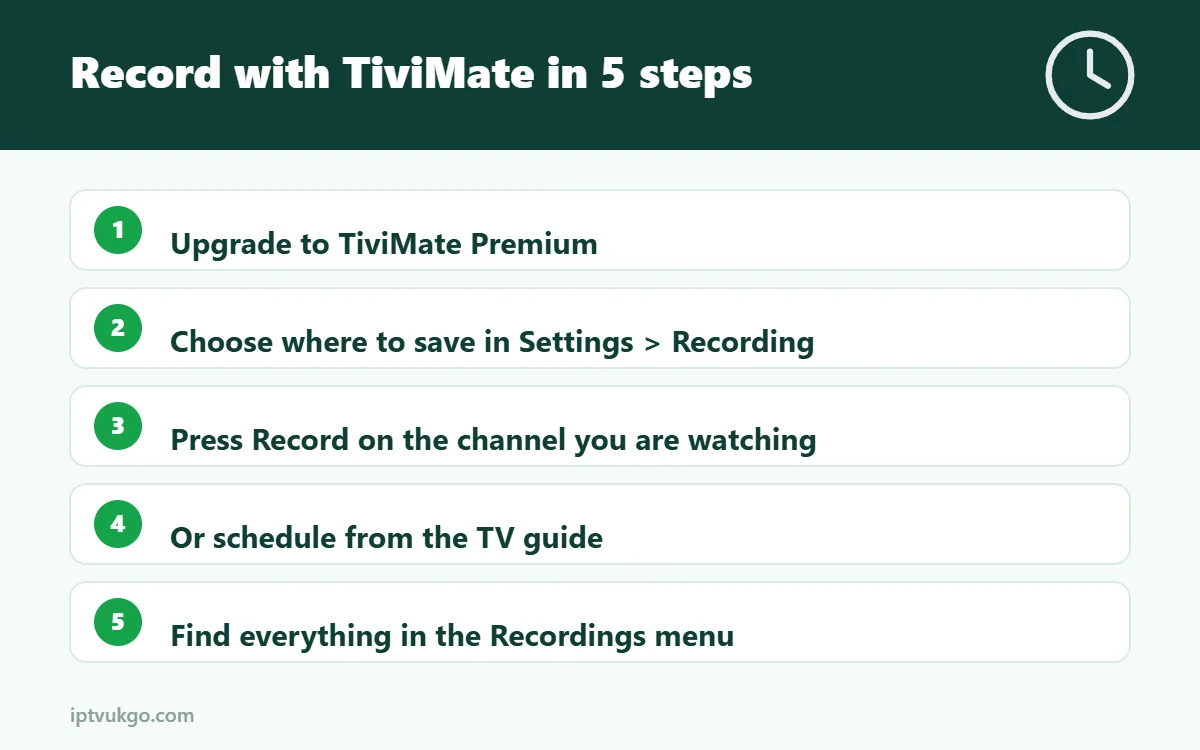
- Make sure you have TiviMate Premium – recording is not in the free version.
- Go to Settings > Recording and choose where to save: internal storage, a USB drive or a network folder.
- To record what you are watching, open the channel menu and choose Record.
- To schedule, open the TV guide, select a future programme and choose Record.
- Find your recordings in the Recordings section of the menu.
Our TiviMate setup guide covers installation and sign-in.
How much storage do you need?
| Quality | Approximate space per hour |
|---|---|
| SD | 0.7–1.4 GB |
| HD | 1.8–3.6 GB |
| 4K | 7–11 GB |
Fire TV Sticks have limited internal storage, so for regular recording use a device with a USB port (such as an Android TV box or Nvidia Shield TV Pro) and an external drive, or save to network storage. See how much data does IPTV use? for more detail.
Tips for reliable recordings
- Use a wired connection so recordings do not stutter.
- Check the time zone on your device is set to the UK, so scheduled recordings start at the right time.
- Add a few minutes before and after scheduled recordings in case programmes overrun.
- Remember connections – a recording uses one of your plan’s connections while it runs. See how many screens can you watch at once?
The TV Licence
Recording any programme as it is being broadcast live needs a TV Licence in the UK, whichever device or service you use. See do you need a TV Licence for IPTV?
Frequently asked questions
Can I record on a Fire TV Stick?
With a recording-capable app like TiviMate Premium, yes, but storage is limited. A USB drive via an OTG adapter or network storage is a better option for regular recording.
Can I record one channel and watch another?
Yes, if your plan allows enough simultaneous connections – the recording and the channel you are watching each use one.
Why did my scheduled recording not start?
Check the device was switched on (not fully powered off), the time zone is correct and there was enough free storage.