

Quick answer
What are the best TV settings for watching live sport?
Start with your TV’s Standard, Calibrated or Filmmaker picture mode rather than Vivid or Sport, set motion smoothing to a low or medium level, turn off heavy noise reduction, and switch on match frame rate on your streaming device. Then fine-tune brightness for your room. These changes give a clear, natural picture without the “soap opera” look or blurry players.
Live sport is the hardest test for any TV: fast movement, bright pitches and tiny details like the ball. Out of the box, most TVs are set up to look eye-catching in a shop, not natural in your living room. These settings work on most Samsung, LG, Sony, Hisense, TCL and Philips TVs – the names vary slightly, but the ideas are the same.
1. Choose the right picture mode
- Avoid Vivid or Dynamic – it is very bright and blue, and crushes detail.
- Sport mode is designed for sport but is often too bright and over-sharpened. Try it, but many people prefer Standard.
- Standard, Calibrated or Filmmaker mode gives the most natural colours. Filmmaker mode can look dim during the day; Standard is a good all-round choice.
2. Set motion smoothing carefully
Motion smoothing goes by different names: Auto Motion Plus (Samsung), TruMotion (LG), Motionflow (Sony) or MEMC (Hisense and TCL).
- Off gives the most natural look but can make fast pans judder.
- High makes motion very smooth but can create odd artefacts around players and the ball.
- Low or medium, or a custom setting with blur reduction high and judder reduction low, usually works best for sport.
3. Match the frame rate on your streaming device
Live sport is often broadcast at 50 frames per second in the UK. If your streaming device outputs at 60, the picture can stutter.
- Fire TV: look for Match Original Frame Rate under Settings > Display & Sounds > Display.
- Google TV / Android TV: look for Match content frame rate in the display settings.
- Apple TV: Settings > Video and Audio > Match Content > Match Frame Rate.
4. Turn down the extras
- Noise reduction – set to low or off on HD and 4K channels; it can smear fine detail like grass.
- Sharpness – keep it low. Too much sharpening adds halos around players.
- Dynamic contrast – low or off to avoid the picture constantly changing brightness.
5. Adjust brightness for your room
For daytime matches in a bright room, raise the backlight or brightness rather than switching to Vivid. In the evening, lower it to avoid eye strain.
6. Do not forget the connection
Even perfect settings cannot fix a stuttering stream. Use Ethernet or 5 GHz Wi-Fi for live sport. See Ethernet vs Wi-Fi for IPTV and IPTV buffering at night.
7. Sound
Crowd noise and commentary sound better through a sound bar. If voices do not match lips, see audio out of sync on IPTV.
Quick settings checklist
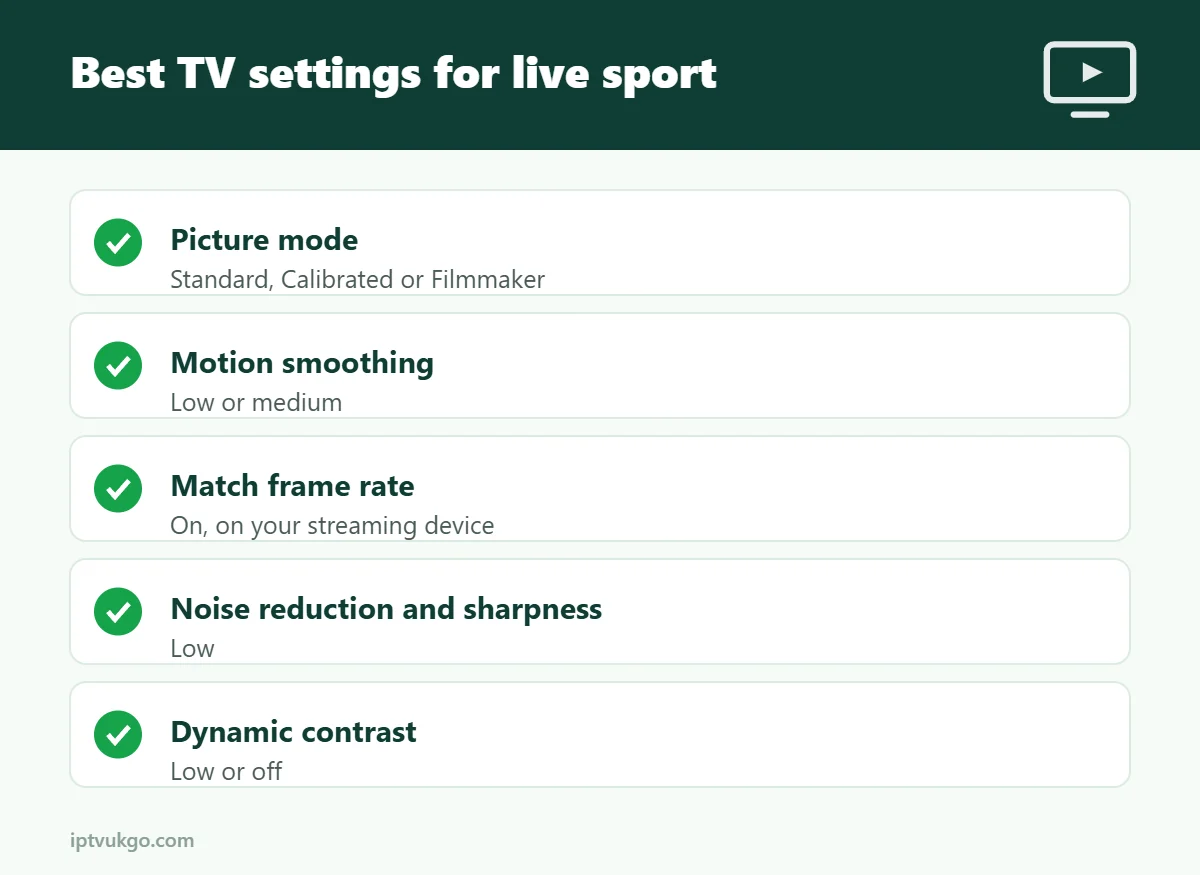
| Setting | Recommended for sport |
|---|---|
| Picture mode | Standard, Calibrated or Filmmaker |
| Motion smoothing | Low or medium |
| Match frame rate | On (streaming device) |
| Noise reduction | Low or off |
| Sharpness | Low |
| Dynamic contrast | Low or off |
Frequently asked questions
Why does fast action look blurry?
Usually a combination of motion settings and the stream itself. Try a medium motion smoothing level and make sure match frame rate is on.
Is Sport mode the best for football?
Not always. Many viewers find Standard mode with adjusted motion settings looks more natural.
Does 4K make sport look better?
Yes, if the channel is broadcast in 4K and your connection can handle it. HD sport on a good TV can still look excellent.