
Quick answer
How do I watch IPTV on a projector?
Plug a Fire TV Stick, Google TV device or Android TV box into the projector’s HDMI port, install your player app and sign in – exactly as you would on a TV. Connect sound to a speaker or sound bar, use a wired or strong 5 GHz connection, and darken the room. Built-in projector apps are often limited, so a streaming stick usually gives the best results.
A projector turns a match, film or big event into a cinema-style experience at home or in the garden. Setting up IPTV on one is simple, but a few details – sound, power and the connection – make the difference between a great night and a frustrating one.
What you need
- A projector with an HDMI port – most models have one.
- A streaming device – Fire TV Stick, Google TV Streamer, Android TV box or a laptop.
- Sound – a sound bar, Bluetooth speaker or the projector’s audio output.
- A good connection – Ethernet, powerline or strong 5 GHz Wi-Fi.
- A screen or a smooth, light-coloured wall.
Step-by-step setup
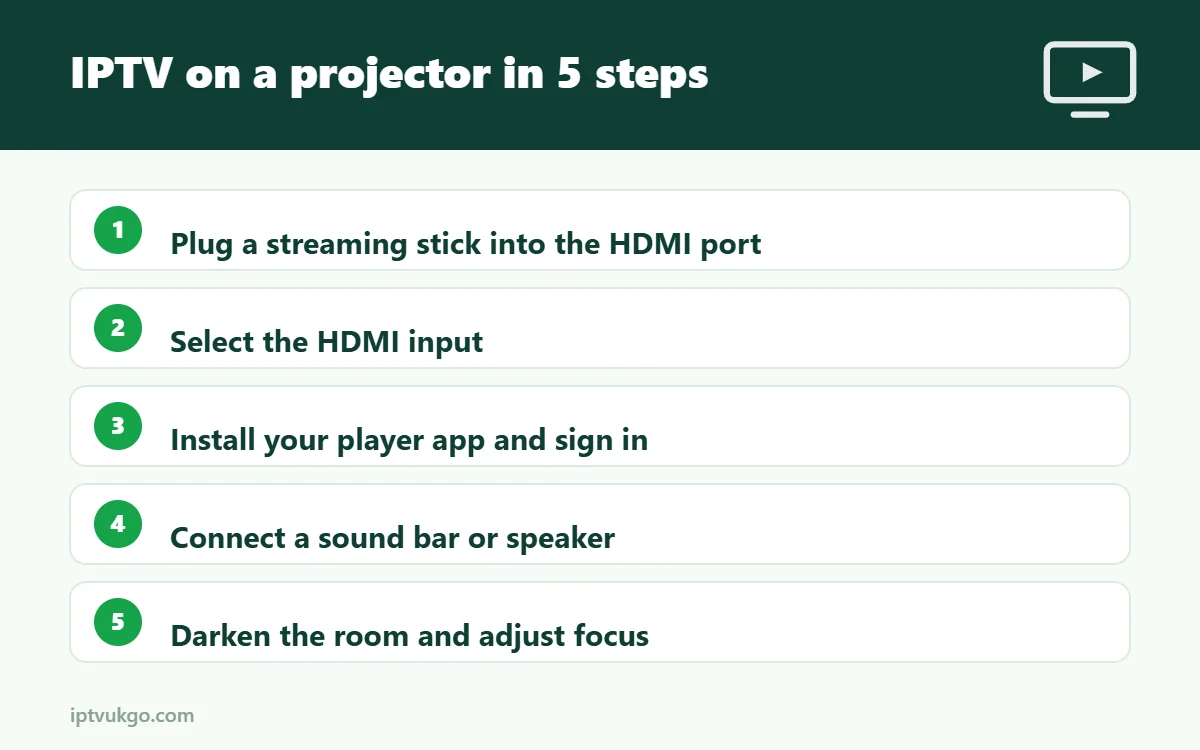
- Connect the streaming device to the projector’s HDMI port. If the stick needs power, use the supplied plug rather than the projector’s USB port, which may not provide enough.
- Select the HDMI input on the projector.
- Install your player app – see the Firestick setup guide or Android TV setup guide.
- Sign in with your Xtream Codes details or M3U link.
- Set up sound – connect a sound bar or speaker. Projector speakers are usually small.
- Adjust focus and keystone so the picture is sharp and square.
Smart projectors
Many projectors now have built-in apps. Some run full Android TV or Google TV and can install player apps from the Play Store; others use a limited system with few apps. If your projector’s apps are limited or slow, a streaming stick is the easiest and most reliable option.
Getting the best picture
- Make the room as dark as possible – projectors lose contrast in daylight.
- Use the projector’s cinema or standard mode rather than the brightest mode for evening viewing.
- Match frame rate on your streaming device for smooth sport. See best TV settings for live sport.
- 4K projectors need about 25 Mbps for 4K streams; HD needs about 15 Mbps.
Sound and Bluetooth delay
Bluetooth speakers can add a delay, so voices may not match lips. Many streaming devices and projectors have an audio delay setting. If not, a wired connection to a sound bar is more reliable. See audio out of sync on IPTV.
Outdoor viewing
For garden screenings, check your Wi-Fi reaches outside – a mesh unit or powerline adapter near the door can help. See powerline vs mesh Wi-Fi. Keep equipment dry and use outdoor-rated extension leads.
Frequently asked questions
Can I use my phone with a projector?
Yes, by casting or with an adapter, but a streaming stick is more reliable for long viewing.
Why is the picture blurry?
Adjust the focus and keystone, and make sure the stream is HD or 4K rather than SD.
Does a projector need a TV Licence?
The TV Licence depends on what you watch, not the screen. Watching live TV needs one on any device. See do you need a TV Licence for IPTV?